

I wrote a simple, but extensible tool to convert bitmaps into MicroPython code fragments.
Table of Contents
User Interface
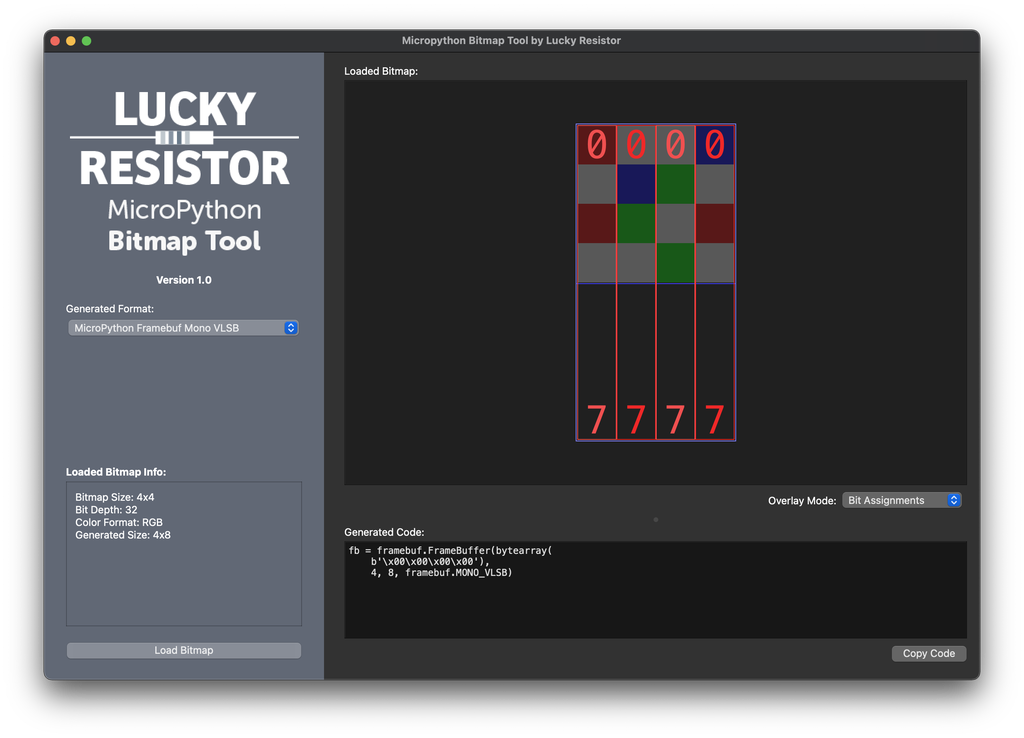
Usage
Well… select a format, load a bitmap and copy the resulting code. 😄
Download
Versions and Changelog
| 1.0.1 | Minor UI improvements for Windows version. |
|---|---|
| 1.0.0 | The initial public version of the application. |
Requirements
- macOS 10.13 or newer
- Windows 10 or newer
License and Copyright
This application is using the Qt library, available under the LGPL v3 license. You can download a copy of the Qt library here.
Copyright 2021 by Lucky Resistor.
This program is free software: you can redistribute it and/or modify it under the terms of the GNU General Public License as published by the Free Software Foundation, either version 3 of the License, or (at your option) any later version.
This program is distributed in the hope that it will be useful, but WITHOUT ANY WARRANTY; without even the implied warranty of MERCHANTABILITY or FITNESS FOR A PARTICULAR PURPOSE. See the GNU General Public License for more details.
You should have received a copy of the GNU General Public License along with this program. If not, see https://www.gnu.org/licenses/.
Source Code
The source code is available on GitHub.
Compile from Source and extend the Code
You can compile the tool from source on any platform. First clone the source code from GitHub. You can use the command line GIT command as shown below, or your favourite graphical client.
git clone [email protected]:LuckyResistor/MicroPythonBitmapTool.git
...or...
git clone https://github.com/LuckyResistor/MicroPythonBitmapTool.git
Windows
- Download the Qt Creator from from https://qt.io..
- In the setup, make sure you install the latest version of the Qt 6 library..
- Open the file
MicropythonBitmapTool.profrom from Qt Creator, it will as you to create a build profile for the project. Select the installed , it will as you to create a build profile for the project. Select the installed Qt 6 library.. - Press the Run button to build and run the project. to build and run the project.
macOS
- Install Xcode from the App Store. from the App Store.
- Start Xcode once and confirm the installation of the developer tools.
- Download the Qt Creator from from https://qt.io..
- In the setup, make sure you install the latest version of the Qt 6 library..
- Open the file
MicropythonBitmapTool.profrom from Qt Creator, it will as you to create a build profile for the project. Select the installed , it will as you to create a build profile for the project. Select the installed Qt 6 library.. - Press the Run button to build and run the project. to build and run the project.
Linux
- Go to https://qt.io and download the online installer from the open-source section. and download the online installer from the open-source section.
- Make the downloaded script executable and start it.
- Select Qt 6.x for Desktop development and start the installation. development and start the installation.
- Open the file
MicropythonBitmapTool.profrom from Qt Creator, it will as you to create a build profile for the project. Select the installed , it will as you to create a build profile for the project. Select the installed Qt 6 library.. - Press the Run button to build and run the project. to build and run the project.